Optimizing the performance of a Windows VPS server is crucial for any business relying on speed and efficiency. Renowned expert in cloud hosting, Mark Roberts, once stated, "Performance issues must be addressed proactively for a seamless experience." This rings true when managing a Windows VPS server.
One common challenge is underutilization of server resources. Many users overlook the importance of configuration settings. Properly tuning these settings can lead to significant performance boosts. Additionally, the choice of applications running on the server directly influences its responsiveness.
Regular maintenance can seem tedious but is essential. Backups and updates are often neglected. Their absence can lead to security vulnerabilities and slower performance. Regularly analyzing system performance can unveil hidden bottlenecks. Investing time into these practices can yield positive results for your Windows VPS server. This journey may require trial and error, but the rewards are worth the effort.

When evaluating Windows VPS server performance metrics, it's crucial to monitor various key indicators. CPU usage is essential for understanding server load. A high CPU percentage might indicate that your applications are resource-intensive. Ideally, keep this under 70% during peak times. Memory usage is another vital metric. Too much consumption can lead to slowdowns. Aim to have plenty of RAM available, particularly during high traffic periods.
Disk I/O metrics provide insight into data retrieval speeds. Slow disk performance can bottleneck your applications. Make sure your storage solution meets your expected performance demands. It's also important to check network latency and bandwidth. High latency can disrupt user experiences. Keep an eye on your server's response times to ensure efficient communication.
Another area for reflection is uptime. Regular downtime affects user trust. Track your uptime percentage to spot trends or issues requiring attention. These metrics are guiding lights, yet there's always room for improvement. Keeping a close eye on them can prevent potential disasters. Always consider doing regular performance reviews to adapt as your needs change.
Identifying resource bottlenecks on your VPS is crucial for optimal performance. Start by monitoring CPU usage. If your CPU consistently runs above 80%, it may be throttling your server. This excess load can be due to heavy applications or insufficient resource allocation. Regularly check performance metrics to spot unusual spikes.
Next, focus on memory usage. A VPS with limited RAM can slow down processing. Look for memory leaks or inefficient applications consuming resources. If you notice your system swapping, it could be an indication of inadequate RAM. Upgrading your memory may be necessary if bottlenecks persist.
Disk I/O is another critical factor. High latency or low read/write speeds can lead to sluggish performance. Use disk monitoring tools to assess this area. Maybe you’ll find that your storage solutions are outdated. Even simple tweaks, like optimizing the file system, can yield noticeable improvements. Performance optimization requires ongoing reflection and adjustments. Keep testing and evaluating your settings for the best results.
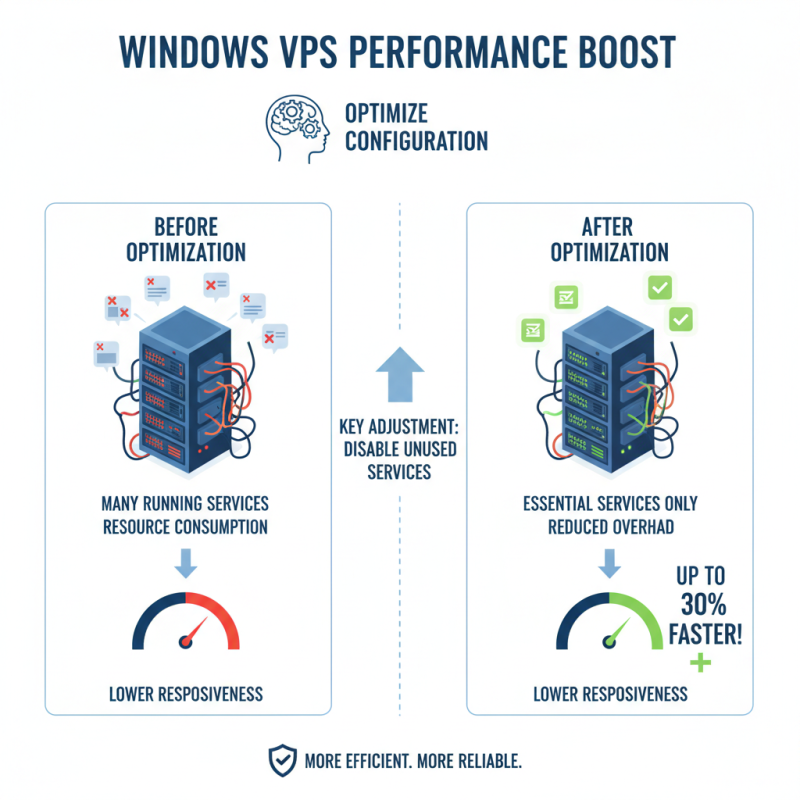
When it comes to optimizing Windows VPS server performance, effective configuration settings are crucial. Many administrators overlook simple adjustments that can lead to significant improvements. For instance, reducing the number of running services can increase server responsiveness. According to reports, every additional service consumes valuable resources. Thus, keeping only essential services active can enhance performance by up to 30%.
Another critical setting involves adjusting the Virtual Memory settings. The default configuration might not be suitable for your workload. Sometimes, tweaking the paging file size improves both stability and speed. A study has shown that proper allocation can reduce latency by 20-40%. This adjustment is often ignored, despite its significant impact. On the other hand, improper tuning can result in instability, leading to more downtime.
Network configuration also plays a vital role in server performance. Utilizing TCP/IP settings correctly can enhance data transmission speeds. However, many users fail to optimize these settings, resulting in slower connections. Research indicates that even a minor adjustment in TCP window size can yield a 15% increase in throughput. If neglected, these factors can lead to frustrating delays and hindered user experiences.
Regular maintenance and updates are crucial for the stability of your Windows VPS server. Statistics show that 70% of server downtime is caused by preventable issues. These issues often stem from outdated software or unmonitored system health. By prioritizing consistent updates, you can minimize vulnerabilities and improve performance stability.
Implementing a schedule for updates is essential. Allocate time weekly or bi-weekly to check for software patches and security upgrades. Around 54% of businesses neglect this, leading to increased risks. A simple oversight can expose your server to malicious attacks. Regular updates not only enhance security but also optimize speed and efficiency.
Incorporating monitoring tools helps identify system irregularities. Many administrators turn a blind eye to performance metrics. A report by a leading IT research firm highlights that 45% of organizations lack effective monitoring systems. Using tools can alert you to issues before they escalate. Regular maintenance isn't just a task; it’s a commitment to optimal performance. Skipping these steps can lead to dire consequences for your server's health.
Tracking the performance of your Windows VPS server is crucial for optimization. Monitoring tools provide valuable insights. These tools help identify bottlenecks, resource usage, and overall server health. Companies that utilize monitoring solutions can see a performance improvement of up to 30% in their systems, according to industry reports.
Regular performance assessments are key. Use monitoring tools to collect data on CPU, RAM, and disk usage. Keep an eye on response times and error rates. If you notice spikes in resource usage, take action. It could mean that your applications are not optimized. Look for unnecessary processes running in the background.
Here are a couple of tips. Regularly update your software and applications. Unpatched systems can slow down performance. Implement automated scaling. This ensures that your server adapts to traffic demands. It prevents slowdowns during peak times. Be vigilant about logging and analyzing system data. This creates a baseline for performance improvements.
| Tip | Description | Monitoring Tool | Performance Improvement |
|---|---|---|---|
| 1. Upgrade Your RAM | Increase memory allocation to handle more simultaneous processes. | Resource Monitor | Improved responsiveness in applications. |
| 2. Optimize CPU Usage | Ensure critical processes receive more CPU resources. | Task Manager | Faster processing speeds for applications. |
| 3. Utilize Disk Cleanup | Regularly remove unnecessary files to free up space. | Disk Cleanup Utility | Improved disk performance. |
| 4. Configure SSD Storage | Use SSDs for faster read/write operations. | Performance Monitor | Reduced load times for applications. |
| 5. Regularly Update Software | Keep all software up-to-date for security and performance. | Windows Update | Enhanced security and functionality. |
| 6. Minimize Background Processes | Limit unnecessary applications running in the background. | Task Manager | Better resource allocation for critical tasks. |
| 7. Use a Content Delivery Network (CDN) | Offload content delivery to improve load times. | Web Performance Monitor | Faster site access for users. |
| 8. Implement Caching Strategies | Store frequently accessed data for quick retrieval. | Caching Performance Tools | Reduced server load and faster data access. |
| 9. Optimize Network Settings | Adjust TCP/IP settings for improved data transmission. | Network Performance Monitor | Increased data transfer speeds. |
| 10. Regular Backup and Maintenance | Schedule regular backups to prevent data loss. | Backup Software | Enhanced data security and recovery. |